This guide is written for operations managers, system administrators, and business owners at growing enterprises who are setting up or revisiting workflow configurations in their ERP or business management systems. It covers what workflow configuration is, what to prepare before you begin, a step-by-step configuration process, common failure points with fixes, and best practices to keep workflows efficient over time.
The stakes are real. Gartner projects that by 2027, more than 70% of recently implemented ERP initiatives will fail to fully meet their original business-case goals — and poor workflow configuration is consistently tied to that failure pattern.
Key Takeaways
- Workflow configuration defines how tasks, approvals, and notifications move between people and systems in a structured sequence
- Map your actual business process on paper before touching any configuration screen; most mistakes trace back to unclear process ownership
- Every workflow needs three defined elements: triggers, participants, and outcomes (including what happens on failure)
- Common failure points include misconfigured approver roles, absent escalation paths, and skipped validation testing
- Review and update workflows whenever your team structure, processes, or GST or statutory requirements change
What Is Workflow Configuration?
Workflow configuration is the setup of rules, roles, sequences, and conditions that determine how a task or request moves through a business process — from initiation to completion — with the right people acting at the right steps.
It is not purely a software task. Every configuration decision reflects a real business decision: who approves what, under what conditions, within what timeframe, and what happens if no action is taken.
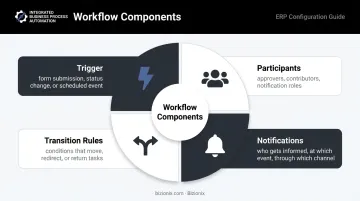
Four core components every configured workflow must include:
- Trigger — what initiates the workflow (a form submission, status change, or scheduled event)
- Participants — the people who approve, contribute input, or receive updates at each step
- Transition rules — the conditions that move a task forward, send it back, or redirect it to an alternative path
- Notifications — who gets informed, at which event, and through which channel
One distinction matters here: a workflow defines the logic for a single process type, while a workflow scheme maps that logic across departments, teams, or project types. The same invoice approval workflow can be reused across multiple departments through a scheme — no rebuilding required.
Types of Workflow Participants
Three standard participant roles appear across virtually every ERP workflow:
- Approvers — must take action to move the workflow forward; their inaction blocks the process
- Contributors — can add input or context but do not block progress
- Notification/CC roles — receive updates on completion or key events without acting
Assigning the wrong participant type is a common — and costly — configuration error. An approver accidentally set as a notification recipient means no one is actually holding the approval step.
When Workflow Configuration Matters Most
The stakes rise sharply when process consistency ties directly to financial accuracy or compliance. These are the areas where a misconfigured workflow causes real damage:
- Multi-step purchase approvals
- Invoice sign-offs and payment authorisations
- Employee onboarding and offboarding
- Leave requests and HR approvals
- Compliance documentation sign-off
Before You Start: Prerequisites for Workflow Configuration
Opening a configuration screen before completing these steps almost guarantees rework.
Document the Process First
Before configuring anything, produce a written process map that captures:
- Each step in the workflow and who owns it
- Decision points and the conditions that trigger them
- Acceptable turnaround time at each stage
- Escalation paths when deadlines are missed
Skipping this step means your configuration inherits the same ambiguities your team already struggles with — and those become much harder to untangle once they're baked into a live system.
Confirm System and Access Readiness
Before opening the configuration screen, verify the following are in place:
- All participant roles exist in the system and are correctly named
- User accounts are active and assigned to the right departments or teams
- The administrator performing configuration has permissions to create, edit, and publish workflows — not just view them
Get Explicit Agreement Before You Build
Do not configure workflows based on how the process worked informally. Get written agreement from department heads on approval hierarchies before any system setup begins. Retroactive changes to live workflows cause data inconsistency and rework that takes far longer to resolve than the original configuration would have.
How to Configure a Workflow: Step-by-Step
Workflow configuration follows a defined sequence: process definition → role assignment → condition setting → notification setup → validation. Most configuration failures trace back to one of these steps being skipped or executed out of order.
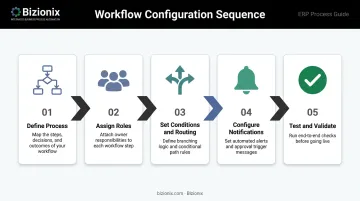
Step 1: Define the Process and Approval Hierarchy
Translate your documented process map into the workflow builder:
- Identify the starting trigger — a form submission, a status change, or a scheduled event
- List each sequential step in the order they occur
- Specify the decision logic at each step (for example: if invoice value exceeds a threshold, route to a senior approver)
Keep this step separate from role assignment. Define the what before you assign the who.
Step 2: Assign Participants and Roles
Assign approvers to each step using the correct role type. The key decision here is between individual user assignments and dynamic group or role-based assignments.
Dynamic group assignments are more resilient. When an approver is assigned as "Department Manager" rather than a specific individual, the workflow continues functioning when that person leaves, changes roles, or transfers to another team. Hard-coded individual assignments break the moment that person's account status changes.
Platforms like Bizionix let MSME administrators configure role-based approval chains through a guided interface, mapping directly to how the business is actually structured rather than forcing it into a rigid default template.
Step 3: Set Conditions, Triggers, and Routing Rules
Configure the conditions that determine which workflow path activates:
- Value-based routing — invoices above a defined amount require an additional approval step
- Event-based triggers — a status change in one module initiates a workflow in another
- Exception handling — what happens if the designated approver is the same person who initiated the request
Exception handling is frequently skipped during initial configuration — treat it as a required test scenario before any workflow goes live.
Step 4: Configure Notifications and Reminders
Set up automated alerts for each workflow event:
- When a request is submitted
- When it reaches a specific approver
- When it is approved or rejected
- When it is approaching its turnaround deadline
Configure reminder intervals for stalled steps — without reminders, workflows expire quietly with no one accountable. A 48-hour inactivity reminder followed by an escalation trigger at 72 hours is a reasonable starting point for most approval workflows.
Step 5: Test and Validate Before Going Live
Run the configured workflow through these test scenarios before activating it for real transactions:
- Standard approval path — confirm the workflow completes as designed on a clean submission
- Rejection and resubmission — confirm the workflow correctly routes back and restarts
- Timeout or escalation — confirm the fallback approver receives the task after the defined period
- Initiator equals approver — confirm the workflow handles this conflict without a self-approval slipping through
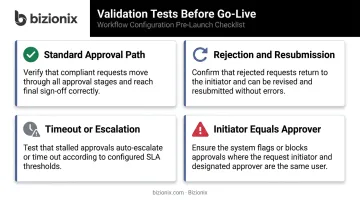
Document the expected output for each test and confirm the system matches before publishing.
Common Workflow Configuration Problems and How to Fix Them
Workflows Stalling at an Approval Step
Problem: A workflow reaches a specific approver, no action is taken, and the request sits unresolved.
Likely cause: The approver was assigned as an individual user who is inactive, on leave, or unaware of the pending request. No reminder interval was configured.
Fix:
- Replace individual-user assignments with dynamic group or role-based assignments
- Configure reminder notifications at a defined interval (48 hours of inactivity is a practical starting point)
- Set an escalation path to a fallback approver after a defined number of days
Notification Failures Leading to Missed Approvals
Problem: Approvers report they never received the notification. Requests are delayed or skipped.
Likely cause: Notification templates reference incorrect email fields, system notification settings are disabled for certain user roles, or notifications were configured to trigger only under conditions that were not met.
Fix:
- Audit notification event settings to confirm they are enabled for all relevant workflow actions: submission, approval, rejection, pending, and reminder
- Verify that all participant accounts have valid, active email addresses linked in the system
Over-Configured Workflows That Create New Bottlenecks
Problem: A workflow meant to add control is now causing more delays than the manual process it replaced.
Likely cause: The configuration was built to satisfy every edge case rather than the common path. Each department requested their own approval step without anyone assessing the cumulative effect on processing time.
This is a real operational cost. Industry benchmarks consistently show that high-performing operations process invoices in under 4 days, while the average sits closer to 9. The difference rarely comes down to technology — it comes down to how workflows are configured.
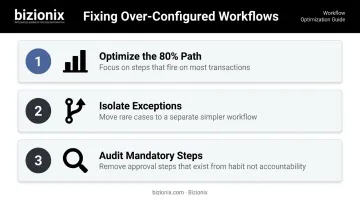
Fix:
- Identify which steps fire on more than 80% of transactions and optimise for those
- Move low-frequency exceptions to a separate, simpler workflow rather than complicating the primary one
- Review every mandatory approval step and ask: does this step add genuine accountability, or does it exist from habit?
Best Practices for Workflow Configuration
Four principles separate workflows that hold up under pressure from ones that quietly create bottlenecks.
Design around your actual process, not your system's default template. Start by asking what happens today when this request is made manually. Identify every genuine handoff point and replicate only the steps that add real control or accountability — not the ones that exist purely from habit.
Start simple and expand deliberately. A two-step workflow that works reliably is more valuable than a six-step workflow that breaks quarterly. Add complexity only when a documented business need justifies it, and test every addition before releasing it to live operations.
Build Escalation Paths Before You Need Them
Every workflow that relies on a single approver is one person's absence away from stalling. Two configurations prevent this:
- Escalation rules: Auto-route to a fallback approver after a defined number of days
- Delegation settings: Let approvers transfer their queue during planned leave
Bizionix supports both natively, reducing manual work when team structures change.
Audit Workflows on a Fixed Schedule
Use system-generated logs to identify:
- Steps with consistently high stall rates
- Approvers who are chronically inactive
- Workflows that have drifted from the actual business process
Ardent Partners found that 54% of best-in-class AP performers can track and report key metrics, compared to just 38% of other organizations. That visibility gap directly affects whether problems get caught early or quietly accumulate.
Frequently Asked Questions
What is workflow configuration?
Workflow configuration is the process of setting up the rules, roles, sequences, and conditions that govern how a task or approval request moves through a defined business process. It converts real-world business decisions into system logic that runs automatically.
What are the key components of a workflow?
Every workflow needs four elements: a trigger that starts it, participants who act at each step, transition rules that determine when a step is complete and what comes next, and notifications that keep all parties informed of progress and pending actions.
What is the difference between a workflow and a workflow scheme?
A workflow defines the logic for a specific process type, such as an invoice approval. A workflow scheme maps that logic to particular departments, project types, or teams — letting the same structure be reused across different contexts without rebuilding it.
How do I set up an approval chain in a workflow?
Add sequential steps to the workflow and assign a participant role to each one. Then specify the conditions under which the request advances, gets sent back, or triggers an alternative path. Use role-based assignments rather than individual users wherever possible.
What should I check after configuring a workflow before going live?
Run five validation tests: the standard approval path, a rejection and resubmission scenario, an escalation trigger scenario, a notification delivery test, and a scenario where the initiator and approver are the same person.
What are the most common workflow configuration mistakes to avoid?
Most workflow failures trace back to the same recurring errors:
- Assigning individual users instead of role-based groups — breaks whenever someone leaves
- Skipping escalation paths — leaves stalled requests with no resolution mechanism
- Over-configuring with too many steps — creates bottlenecks worse than the manual process it replaced